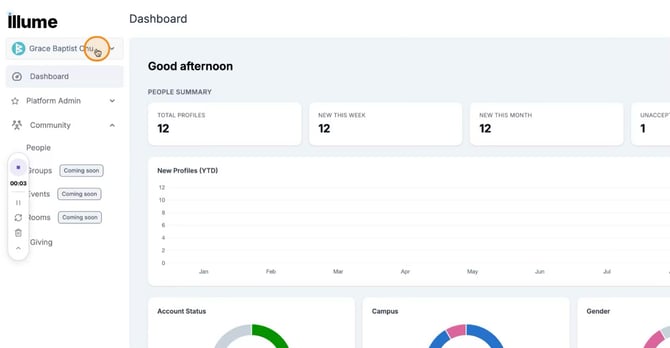
Step 1: Open Your Church Settings
Select your church name from the Loom interface.
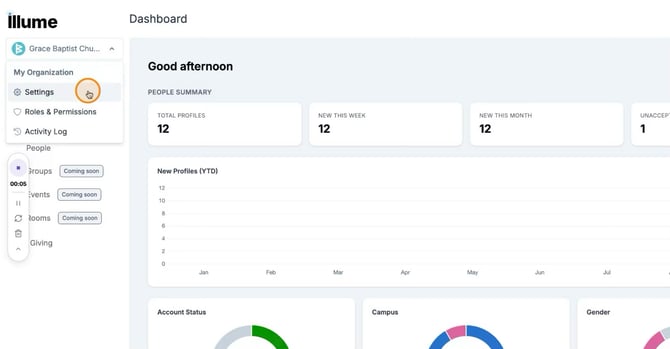
 From the drop-down menu, select Settings.
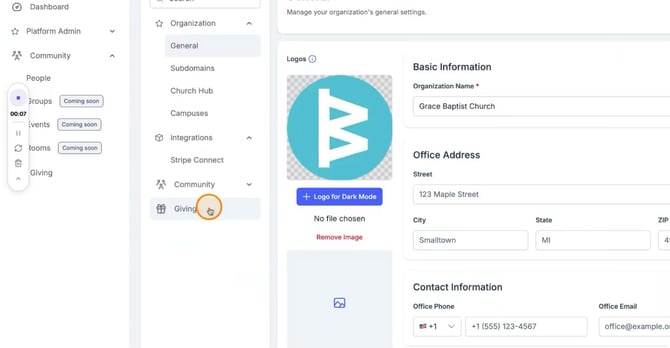
 Step 2: Navigate to Giving
From the Settings area, click on Giving to open your giving configuration.
Step 3: Configure Fee Handling
At the top of the Giving page, review how processing fee handling is configured. You can enable the option for the donor to cover the processing fee.
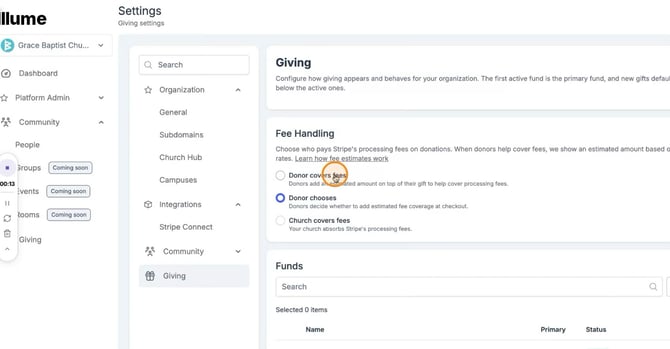 The donor chooses whether they would like to cover the processing fee or have the church cover the processing fees.
Step 4: Review Existing Funds
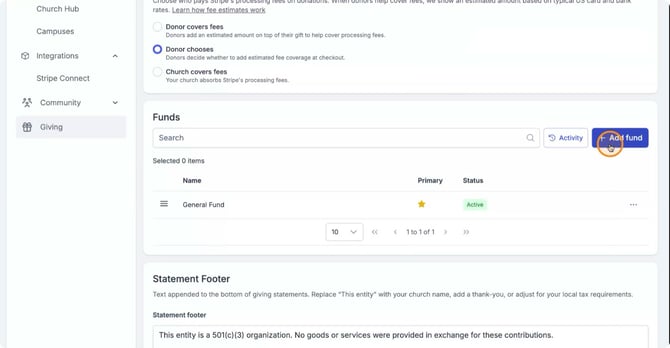
Below the fee handling section, review the list of funds your church has available. You will see the General Fund listed here by default.
Step 5: Add a New Fund
If you would like to add a fund, click Add Fund.
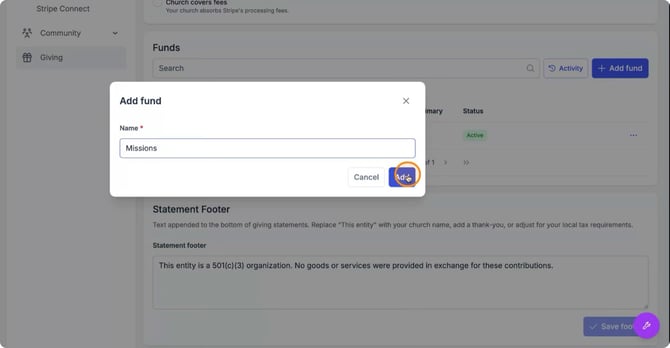
 Then input your new fund name in the field provided and select Add to create it.
 Step 6: Set the Primary Fund
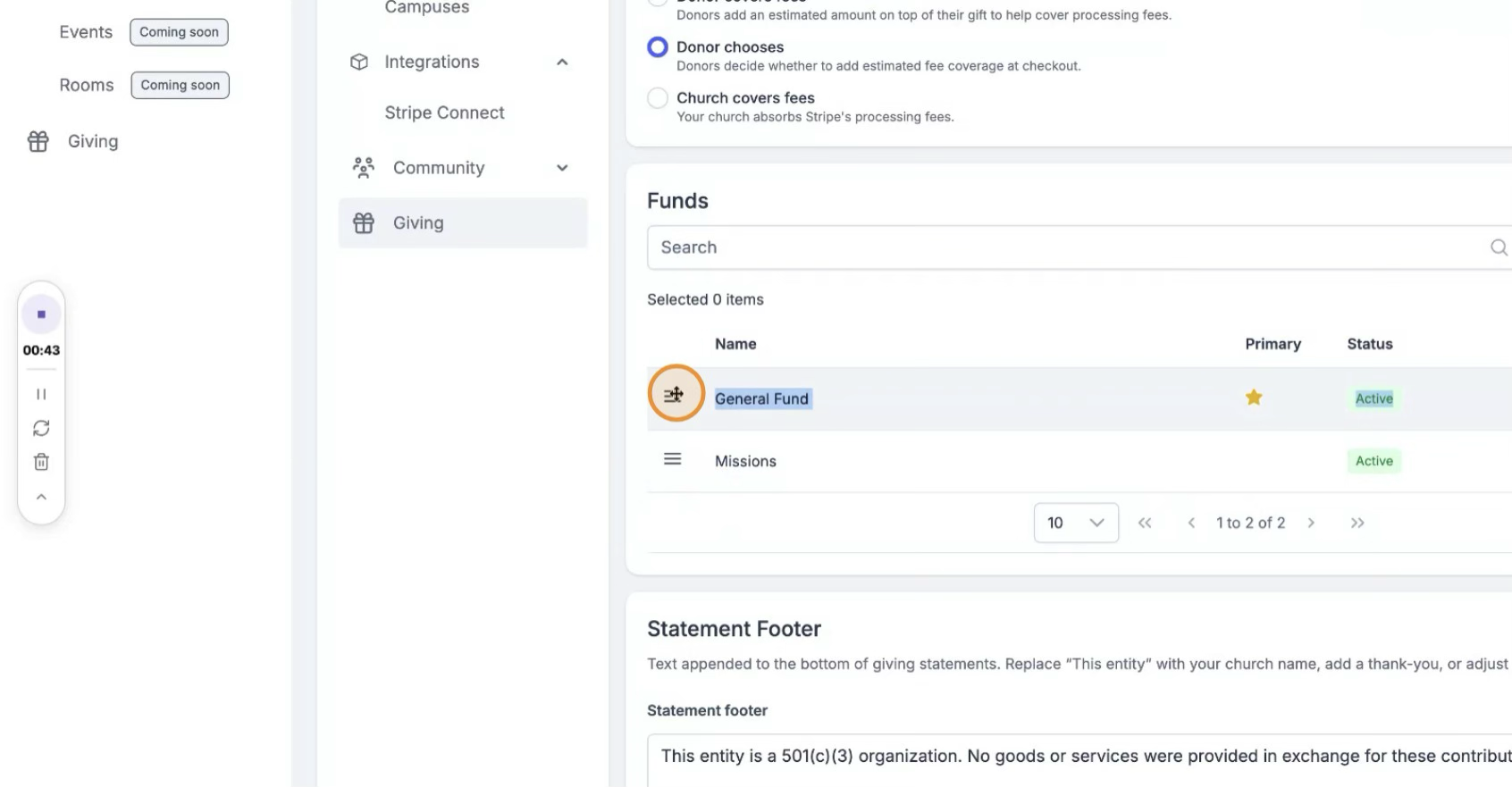
To change which fund is the primary, drag and drop the desired fund to the top of the list.You will know it is the primary fund because there will be a star icon next to it.
Step 7: Make a Fund Inactive
If you would like to make a fund inactive, click the Action item next to that fund and select Edit.
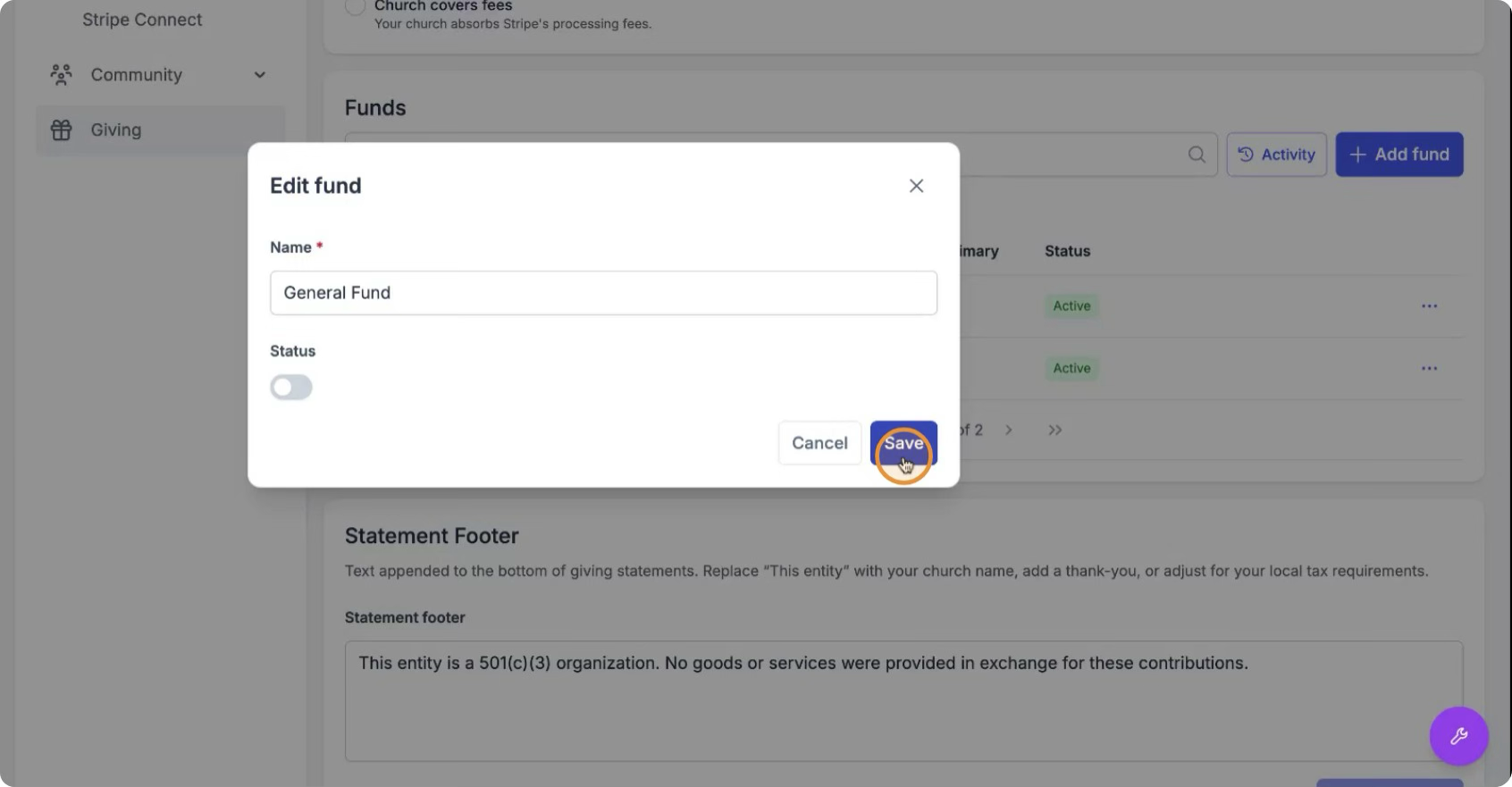
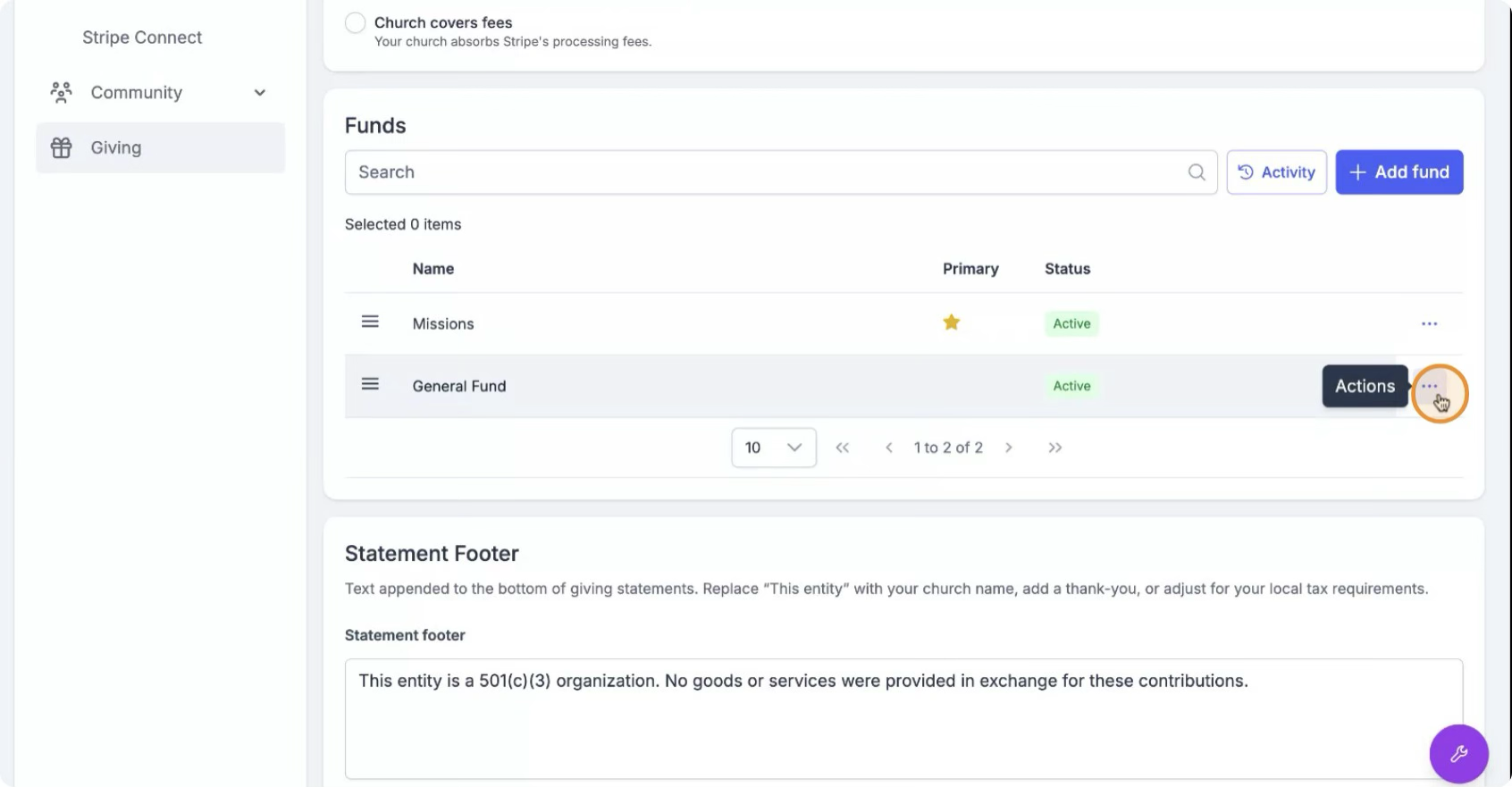 Change the fund status to Inactive. If there are recurring gifts assigned to this fund, a message will appear indicating how many recurring donations are currently set to go to it. Then click Save.
Step 8: Customize Statement and Receipt Footers
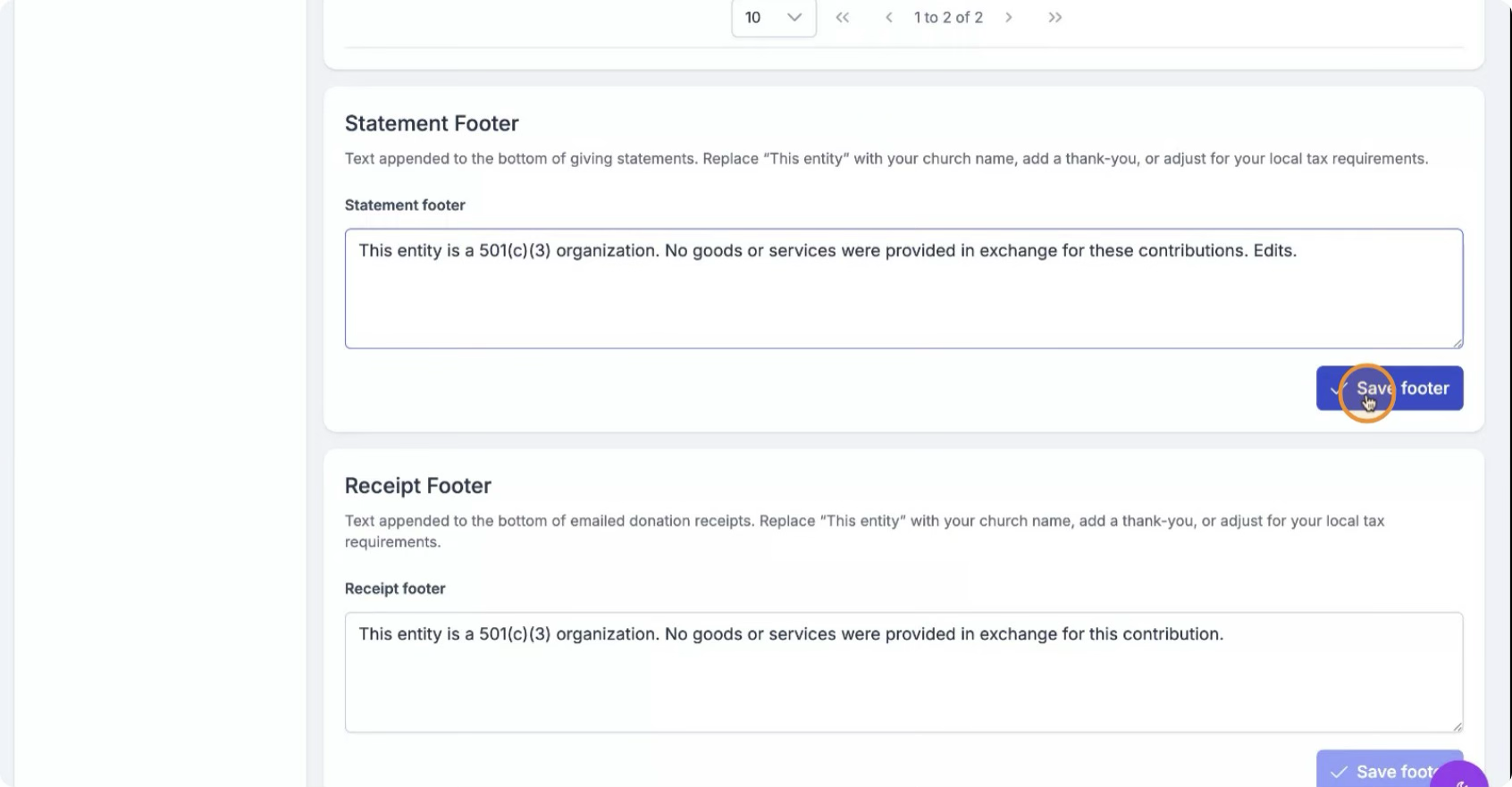
Below the funds section, you will see Statement Footers for tax statements and Receipt Footers. Customize these text areas as needed for your church’s communication.
If you make any edits, click Save to apply your changes.