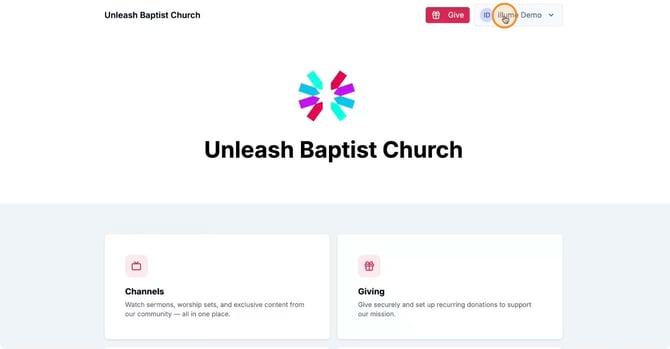
Step 1: Access Your Profile Menu
Once you are logged into your Church Hub, click your name in the upper-right corner of the screen.
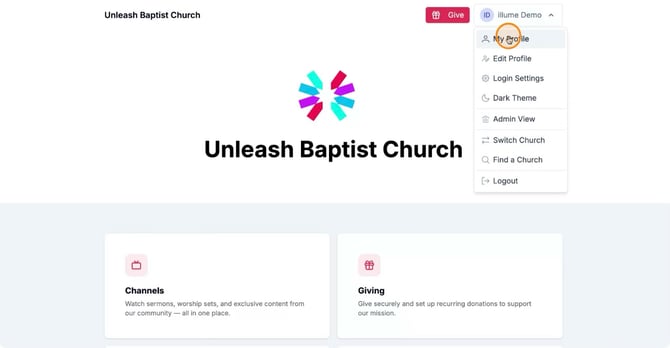
 From the dropdown menu that appears, select My Profile.
 Step 2: Review Your Profile Overview
On the My Profile page, review your contact email and campus information. Below this, you will see an overview of your households and giving.
Step 3: View and Update Household Information
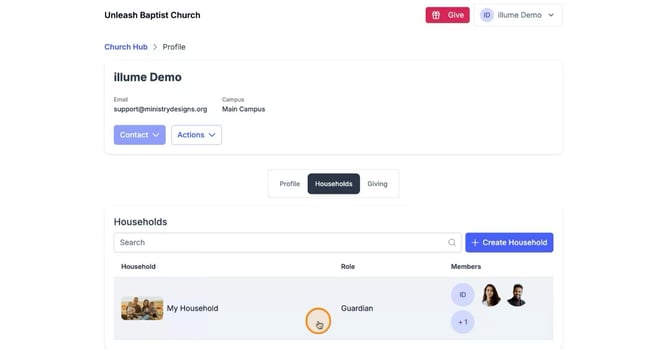
To view more details, select Households.
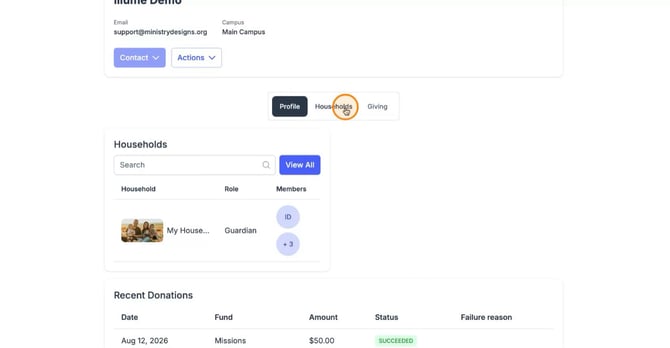 Here you can see information about your household and its members.
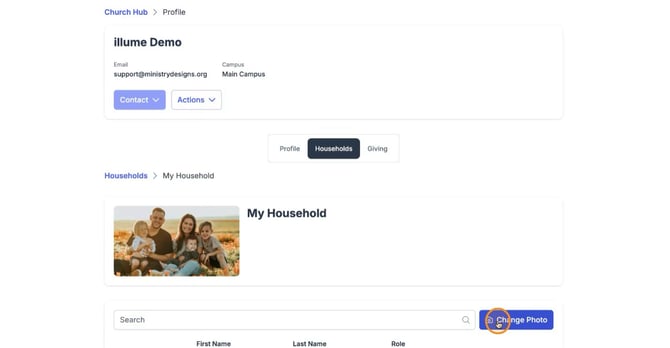
 You can also change your household photo by clicking Change Photo and selecting an image from your computer.
 Step 4: Review Your Giving History
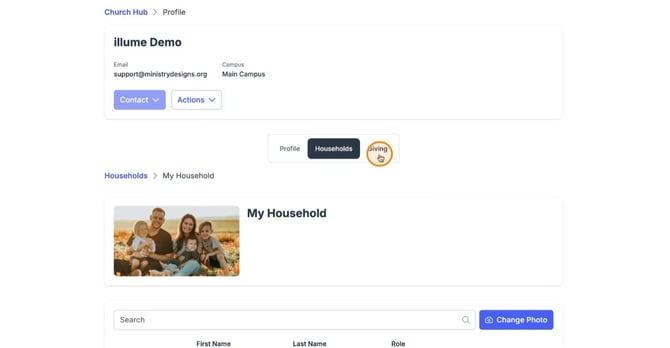
Select Giving to view your giving information.
 You can review your giving history and use the options below to filter:
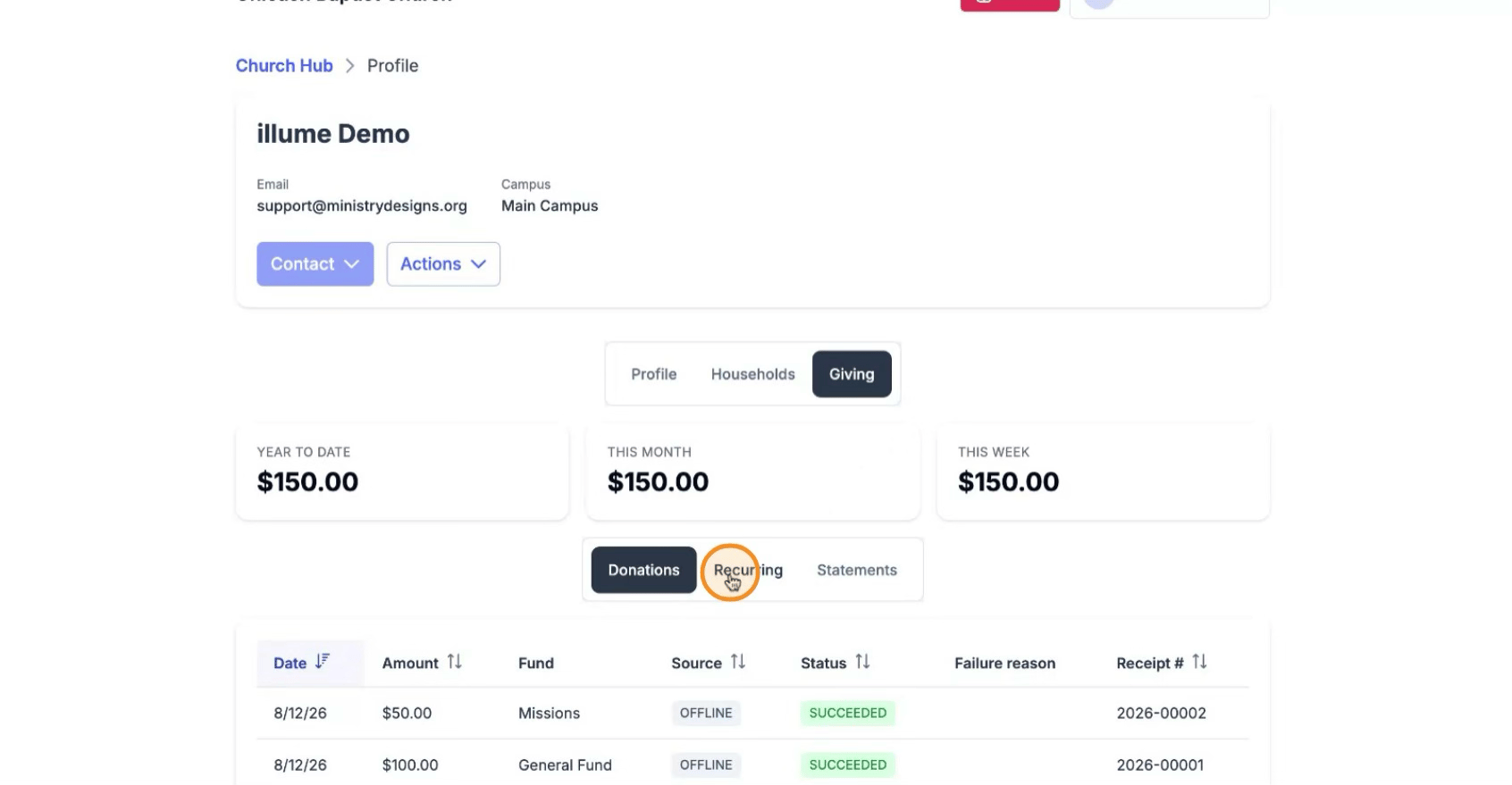
View Recurring Donations
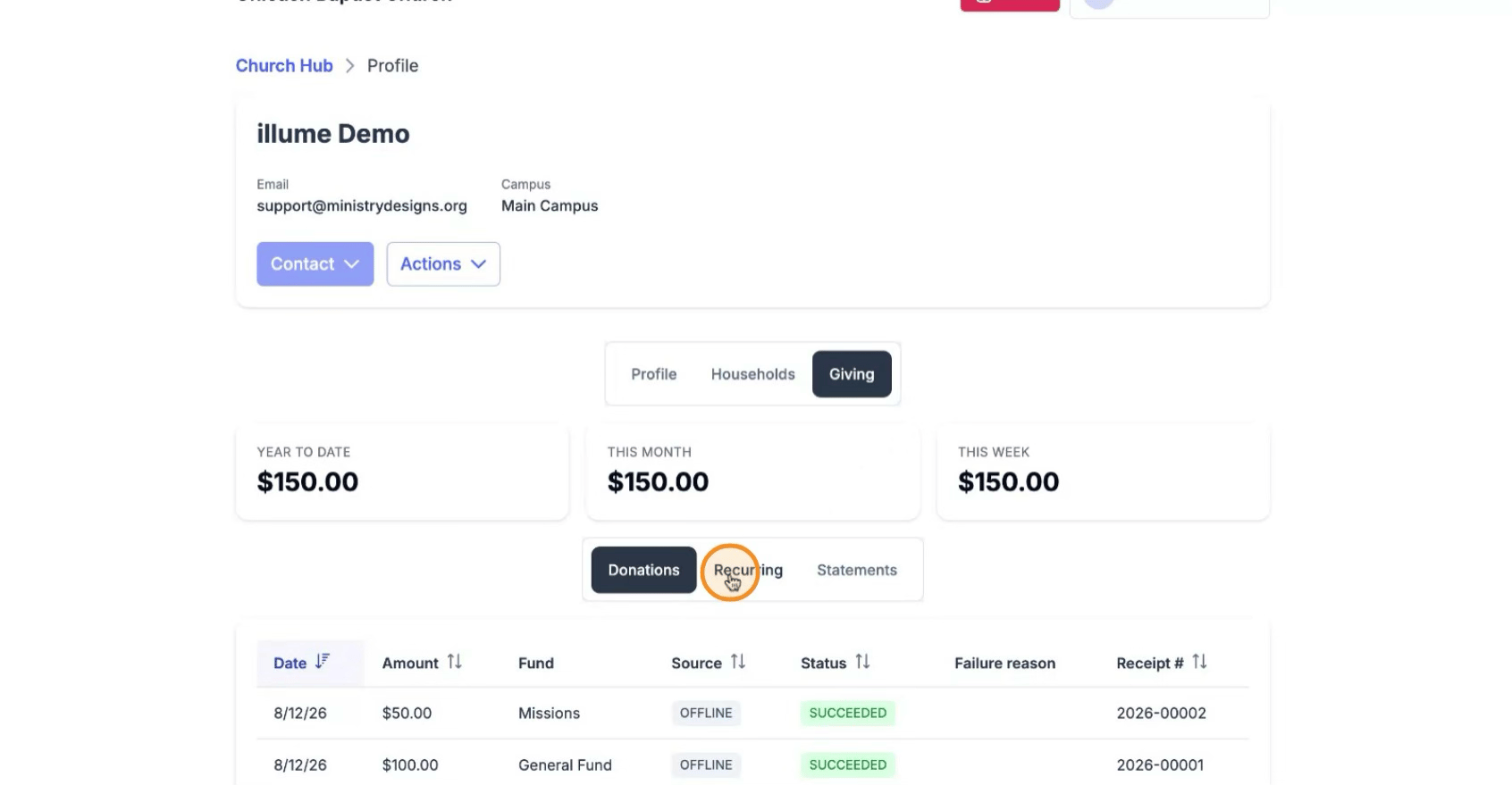
- View Statements
Step 5: Open the Profile Editing Screen
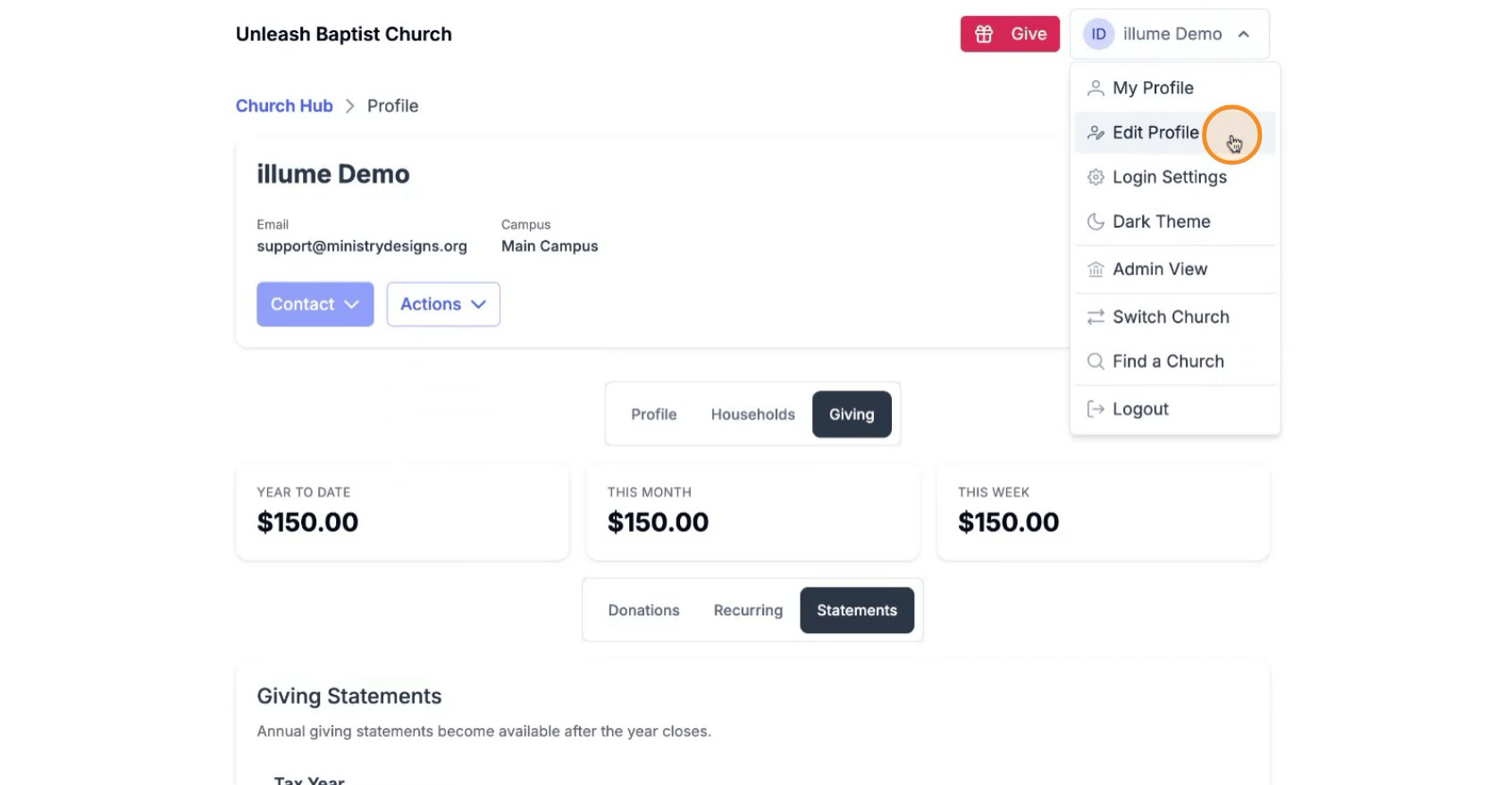
To edit your profile, click your name again in the upper-right corner and select Edit Profile.
Step 6: Edit Basic Information and Profile Image
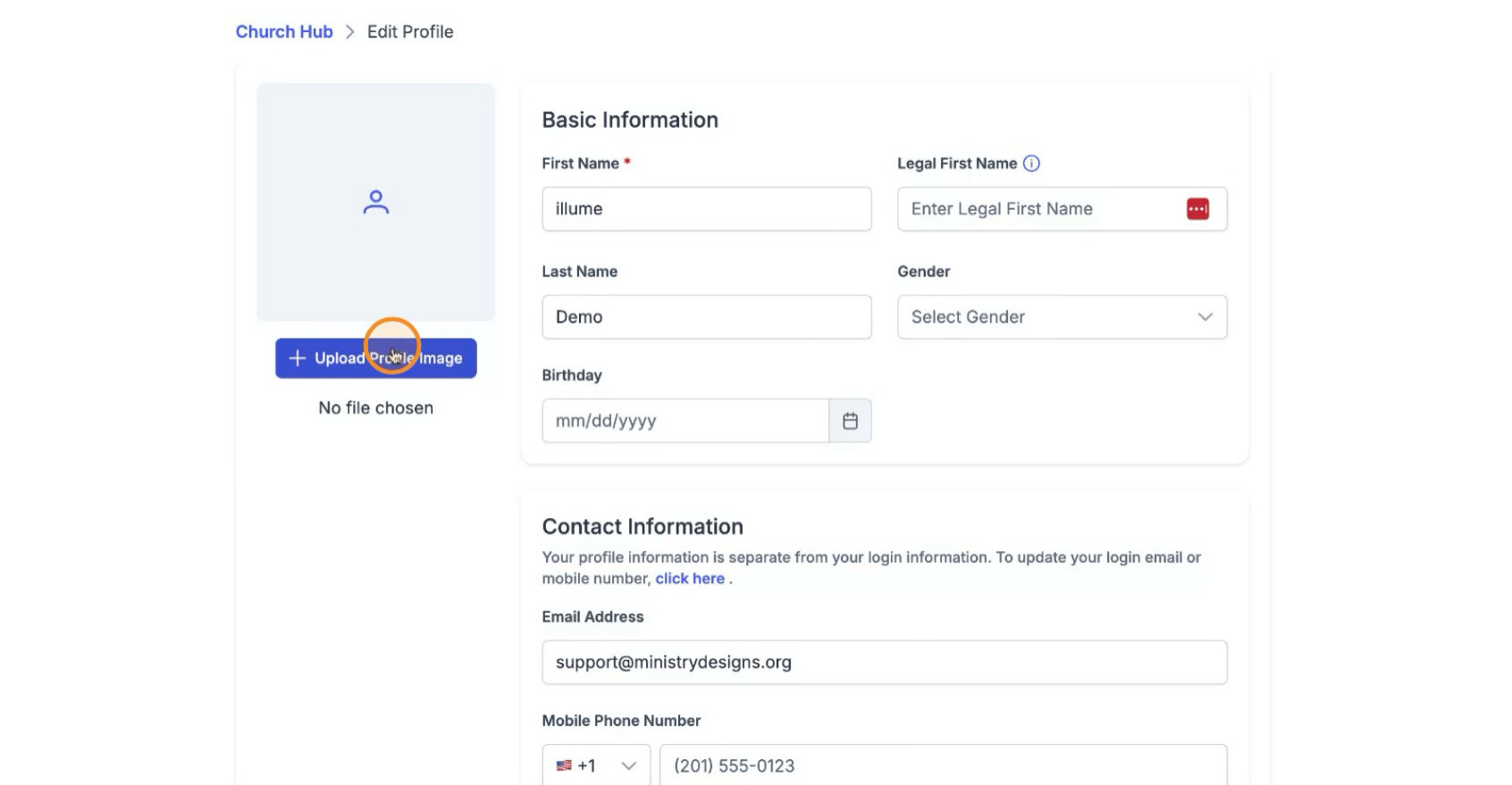
On the edit screen, you can update your name and birthday.
To add or change your profile image, click the purple image button.
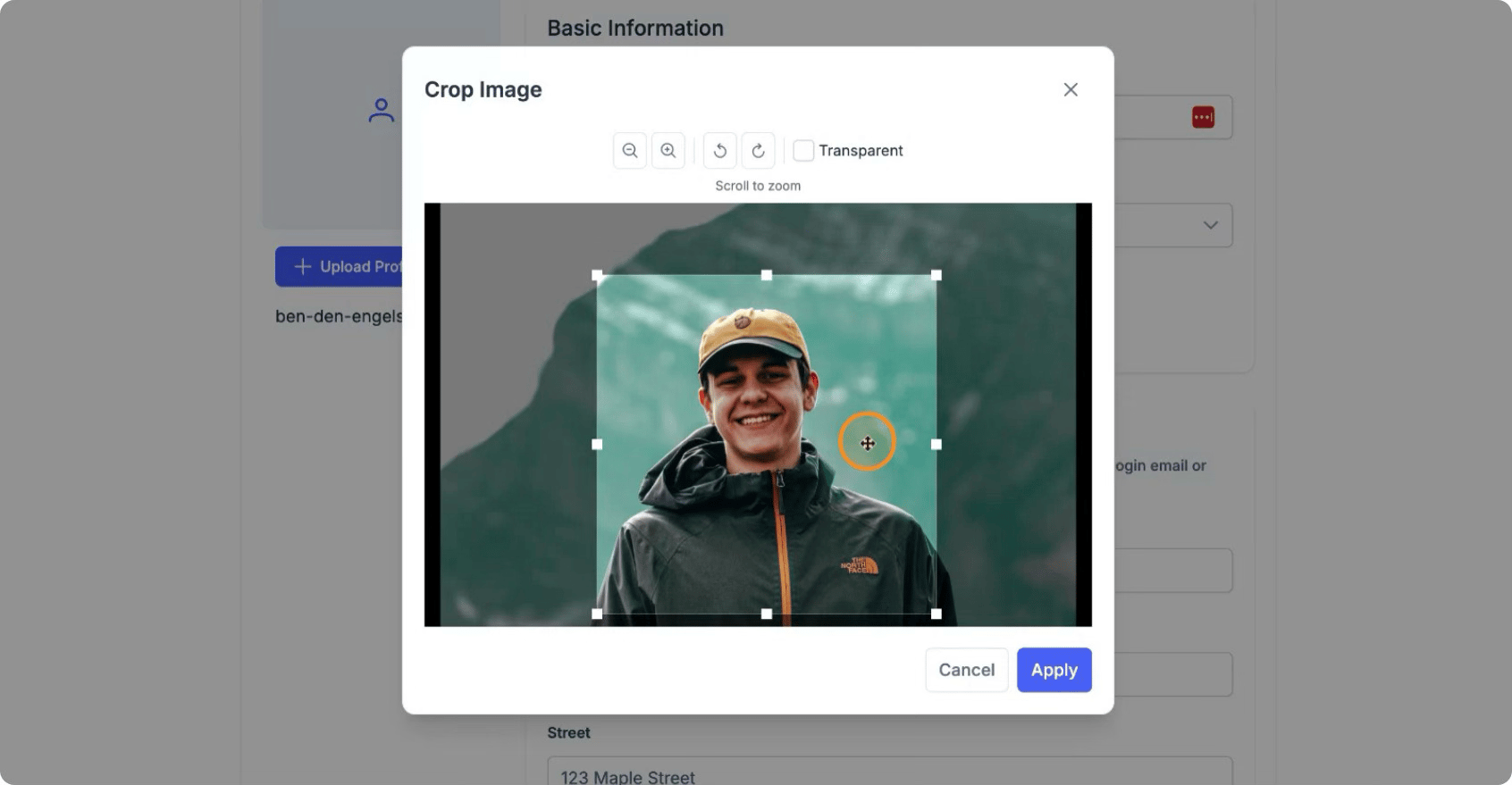
 Select your image from your device, then crop the image as desired. When you are satisfied with the crop, select Apply.
 Step 7: Update Contact Details and Campus, Then Save
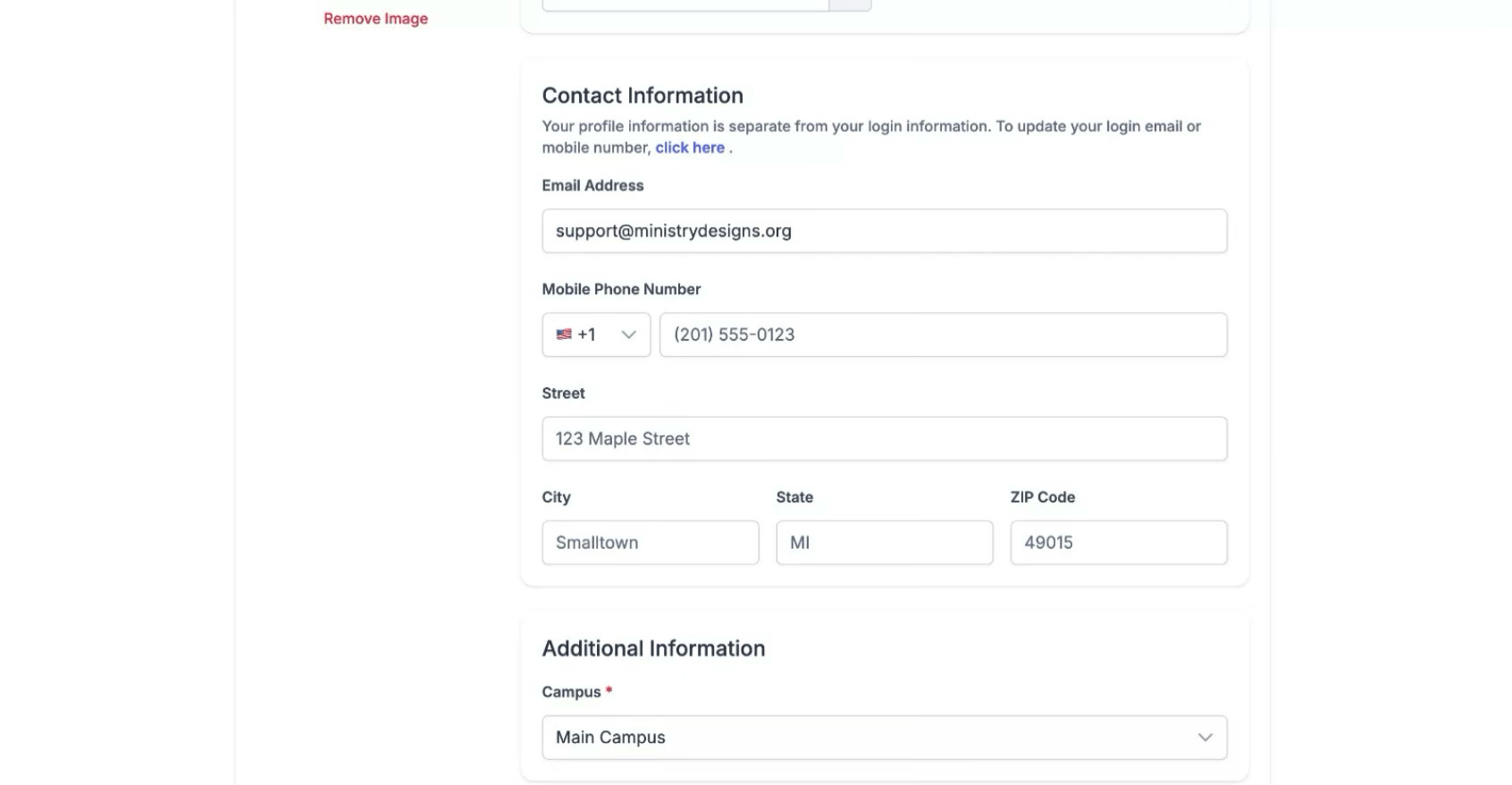
Scroll down to update your contact information, including your email address, phone number, and street address.
Use the campus dropdown to select or change your campus.
When all updates are complete, click Update Profile to save your changes.