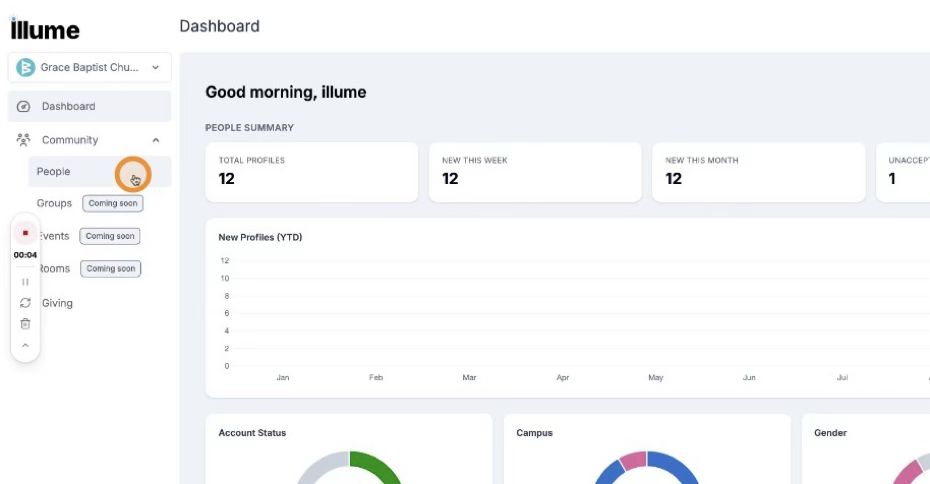
Step 1: Open the People Management Section
Click People in the main navigation.
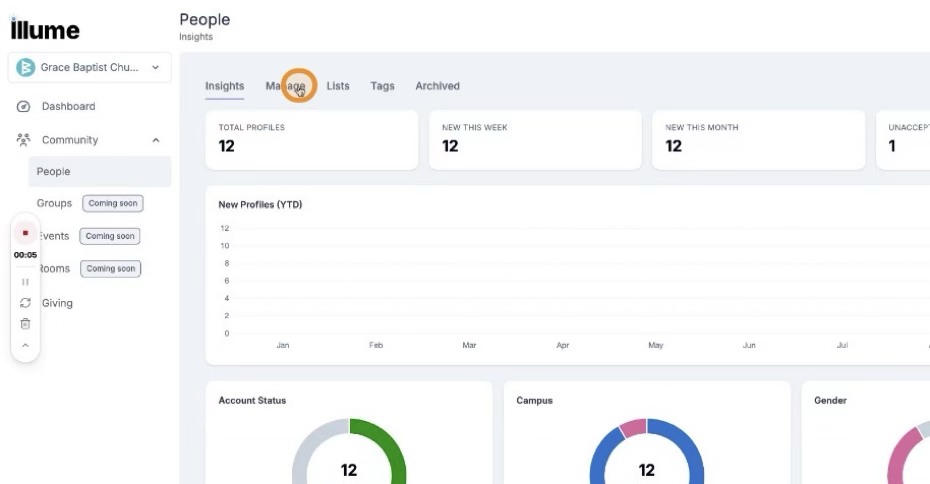
 Then click Manage to open the people management page.
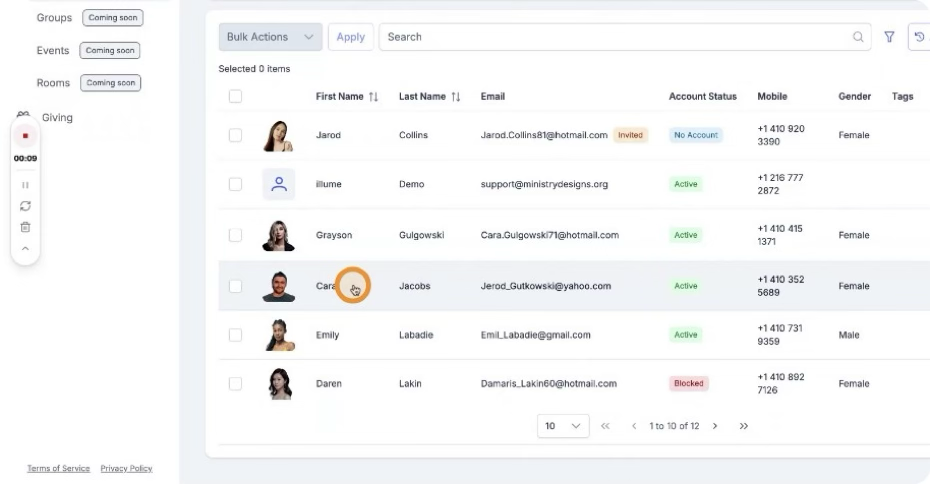
 Step 2: Select a Profile and Open the Household Tab
Select the profile you would like to add to a household.
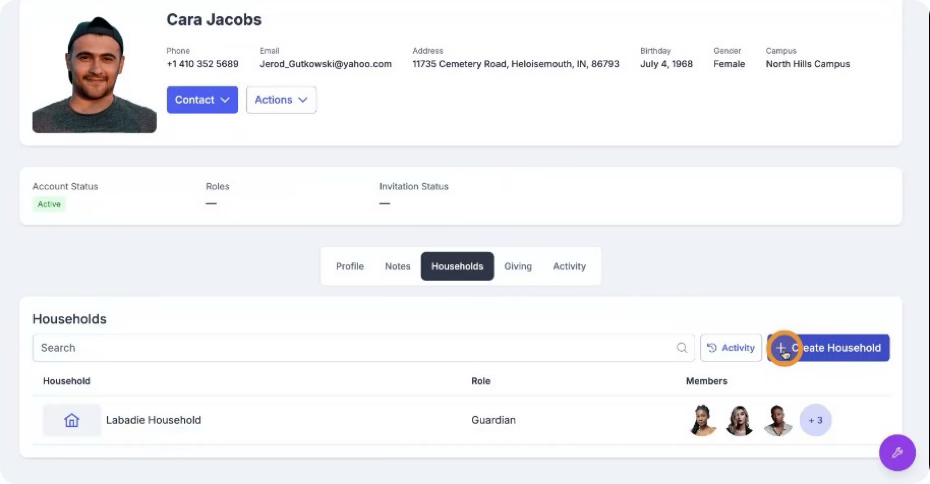
 Open the Household tab for that profile.
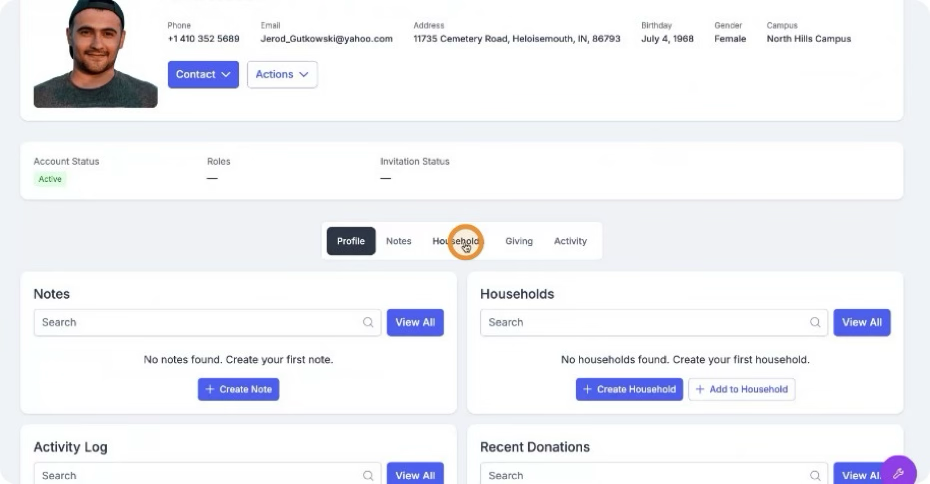 From this tab, you can either add the profile to an existing household or create a new household.
Step 3: Add the Profile to an Existing Household
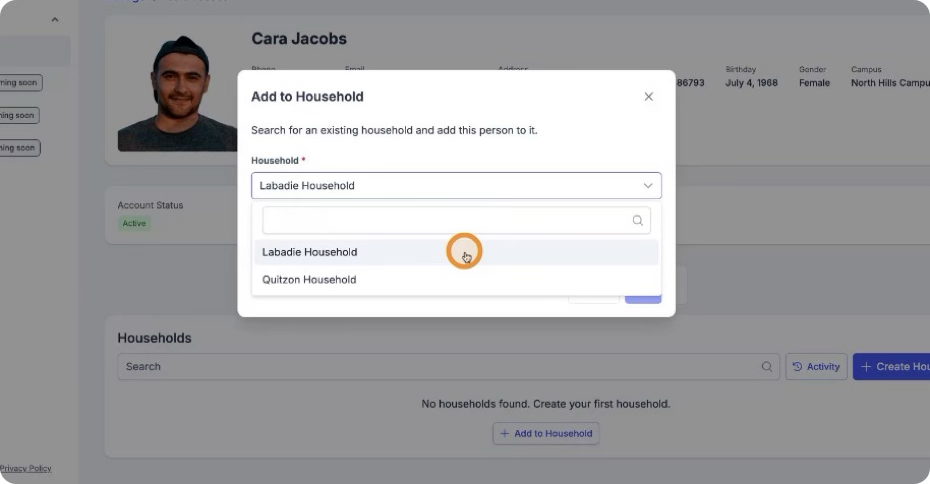
To add the profile to an existing household, select the household name from the list.
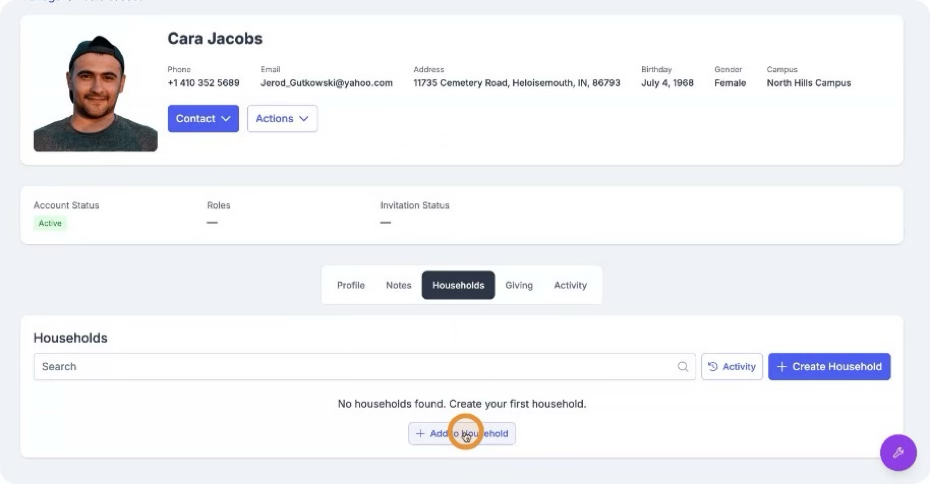 Choose the appropriate household name.
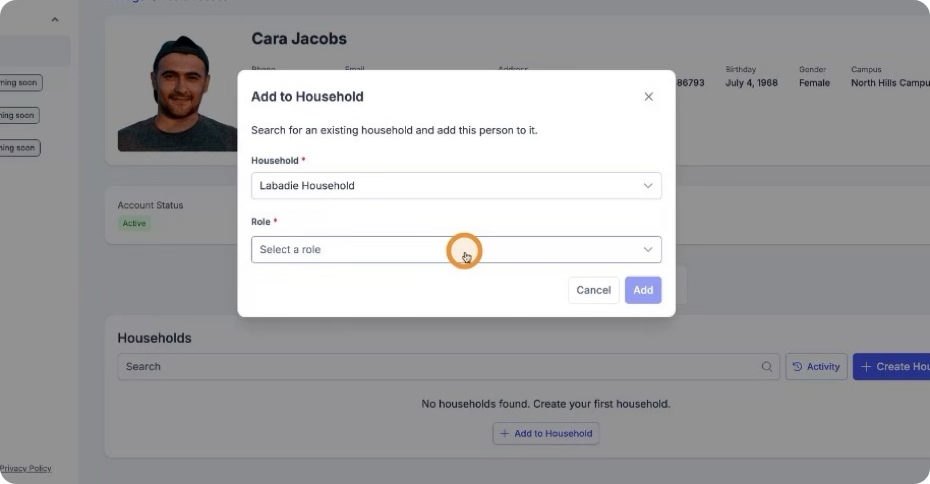
 Then select the role this person will hold in the household (e.g., guardian, trusted adult, or dependent).
 Step 4: Start Creating a New Household
If you would like to create a new household instead, click Create Household.
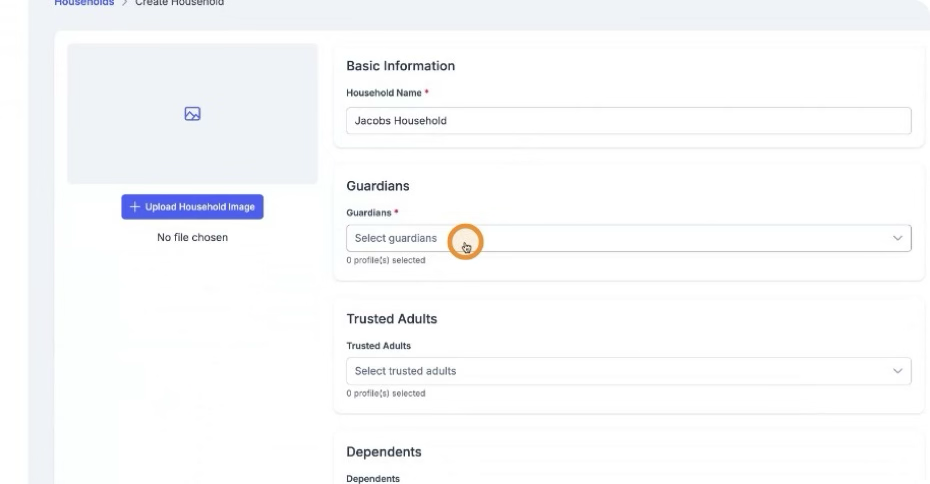
Enter the household name and specify the guardians in the household.
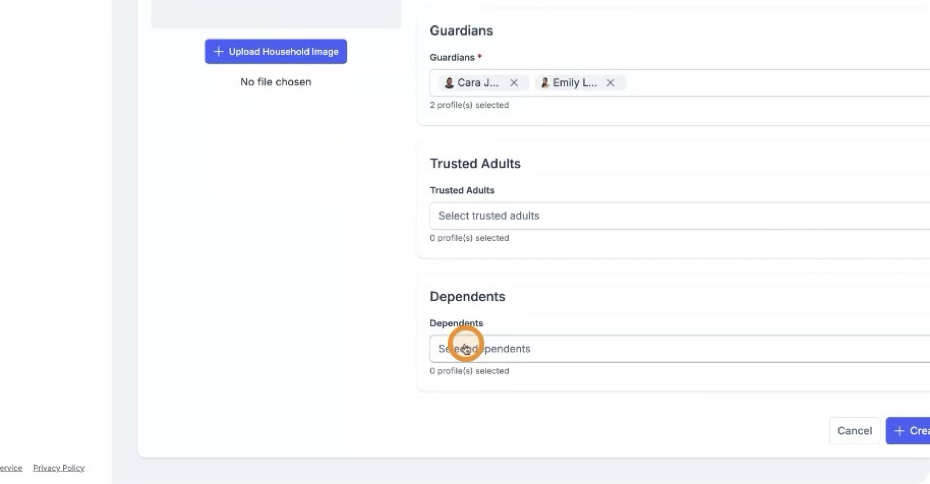
 Step 5: Add Trusted Adults and Dependents
Add the trusted adults for the household. Then add the dependents who belong to this household.
 Step 6: Upload a Household Image
Optionally, you may upload a household image by clicking the image upload button.
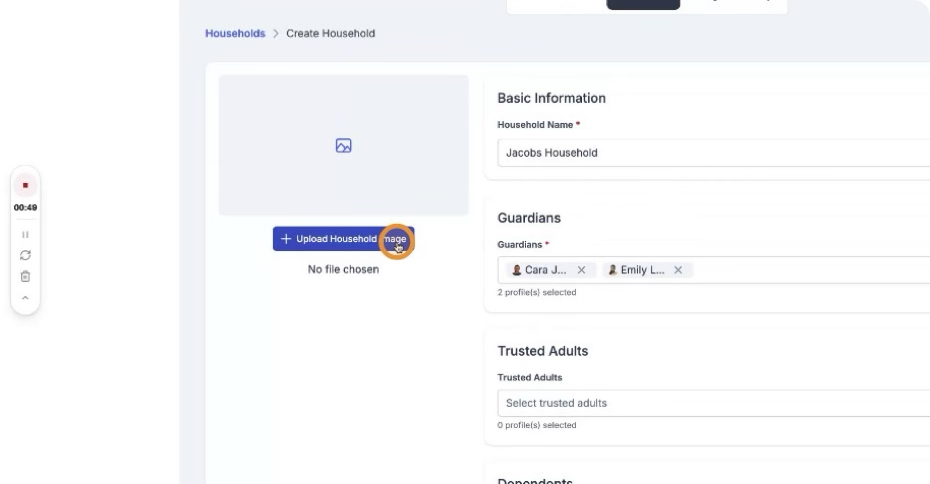 You can choose to upload a household image by selecting the upload area, choosing a photo from your device, and then cropping the photo to your desired size.
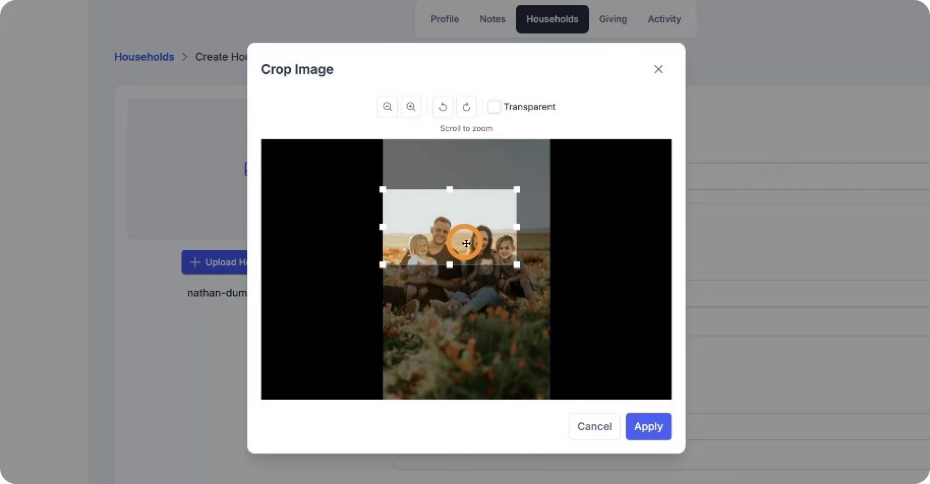
Finish by clicking Apply to save the cropped image.
Step 7: Create the Household
When all details are complete, click Create Household to save the new household.
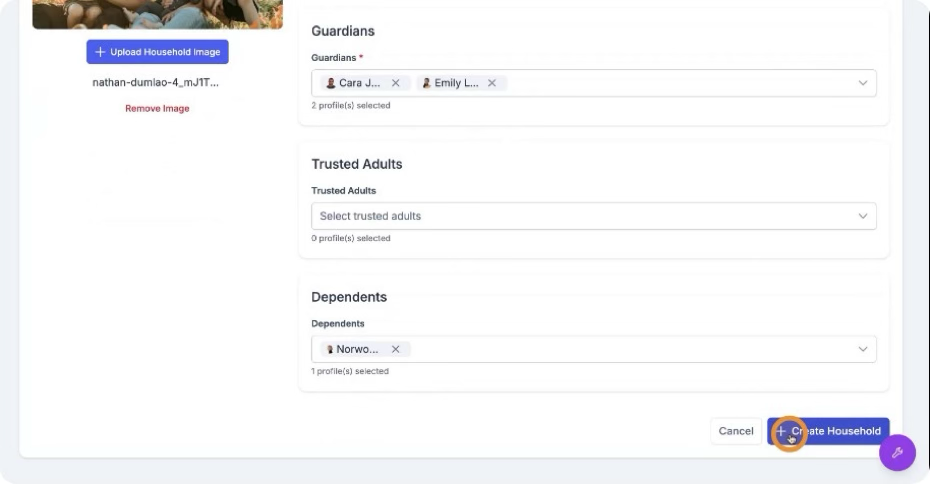 You have now successfully created a new household.
Step 8: View and Edit an Existing Household
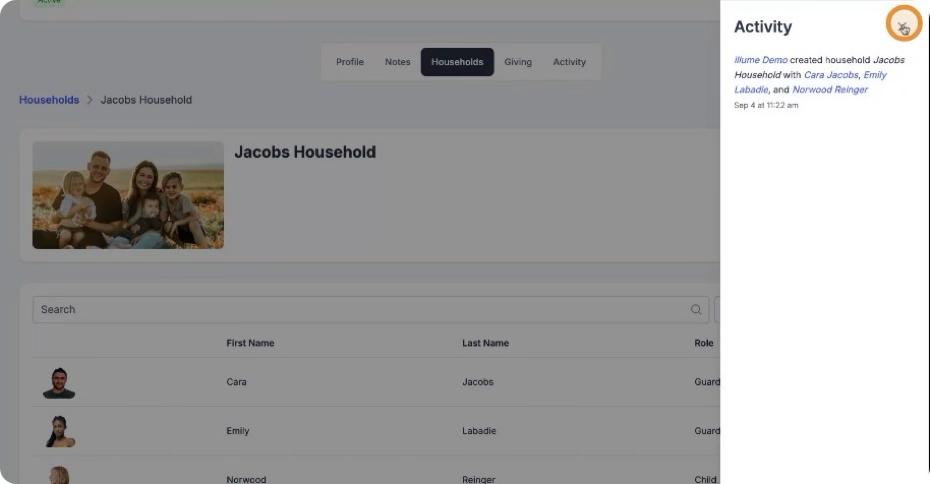
To edit a household, click on the household name to open its details and view its members and activity.
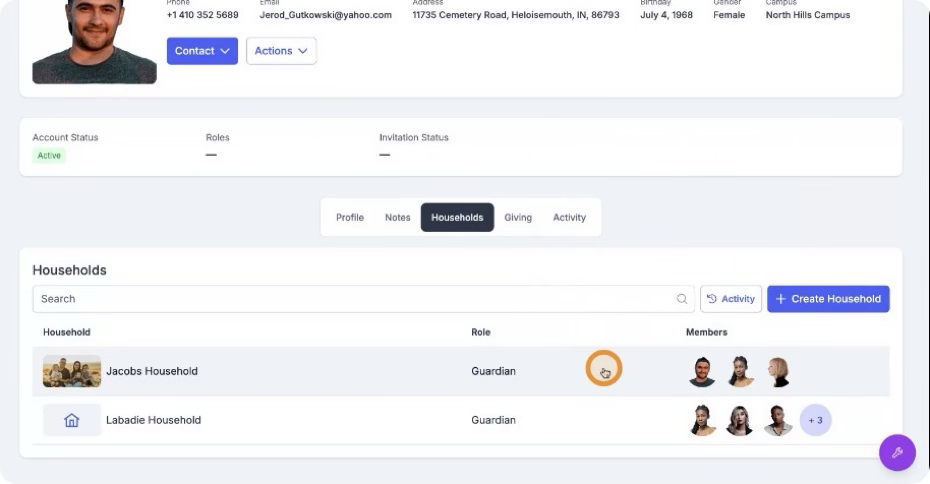 You can see all members of the household and review activity within the household. From this view, you can make any necessary edits to the household.