
Step 1: Open Your Church Settings
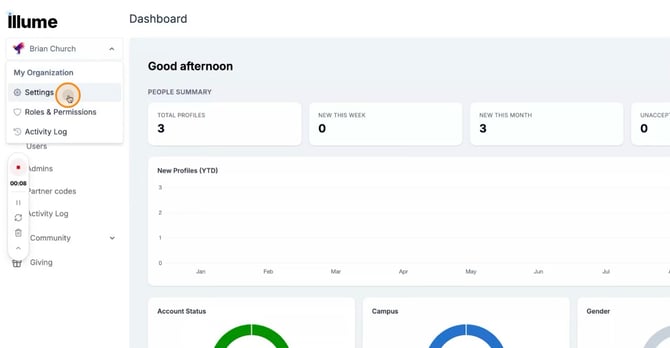
Click your church's name in the interface. Then select Settings from the menu.
Step 2: Navigate to the Church Hub
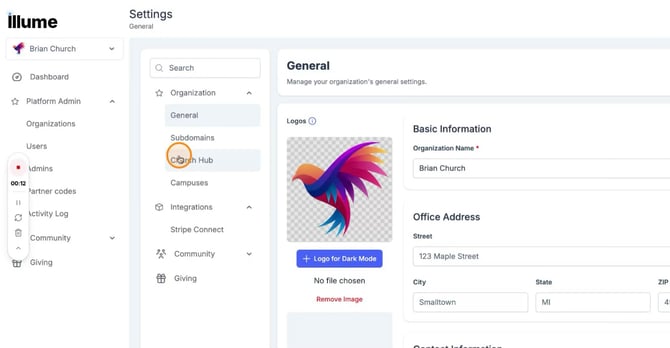
Within the Settings area, select Church Hub to open your hub configuration page.
Step 3: Review and Copy Your Default Hub Link
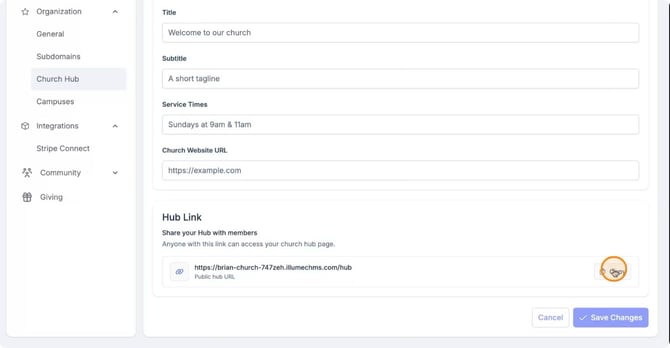
On the Church Hub page, you can update and adjust any details on your hub as needed.
Below, you will see your primary hub link that you can share with your members.
Click Copy to copy this hub link to your clipboard.
Step 4: Copy the Subdomain-Based Hub Link (Optional)
If you want to use the link that matches a new subdomain you’ve selected, go to the Subdomains section.
Find the subdomain you want to use, then click the Copy button next to that subdomain.
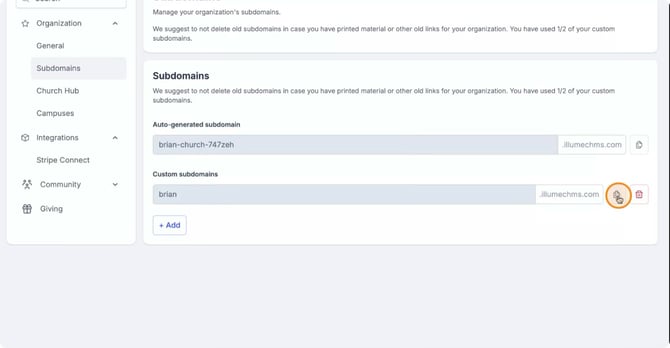
This URL will be copied to your clipboard and can be shared with members so they can easily access your specific church hub.