
Accessing Your illume Church Hub
Use the Loom Church Finder to locate your church, create your account, and sign in so you can access your church’s hub and its available features.
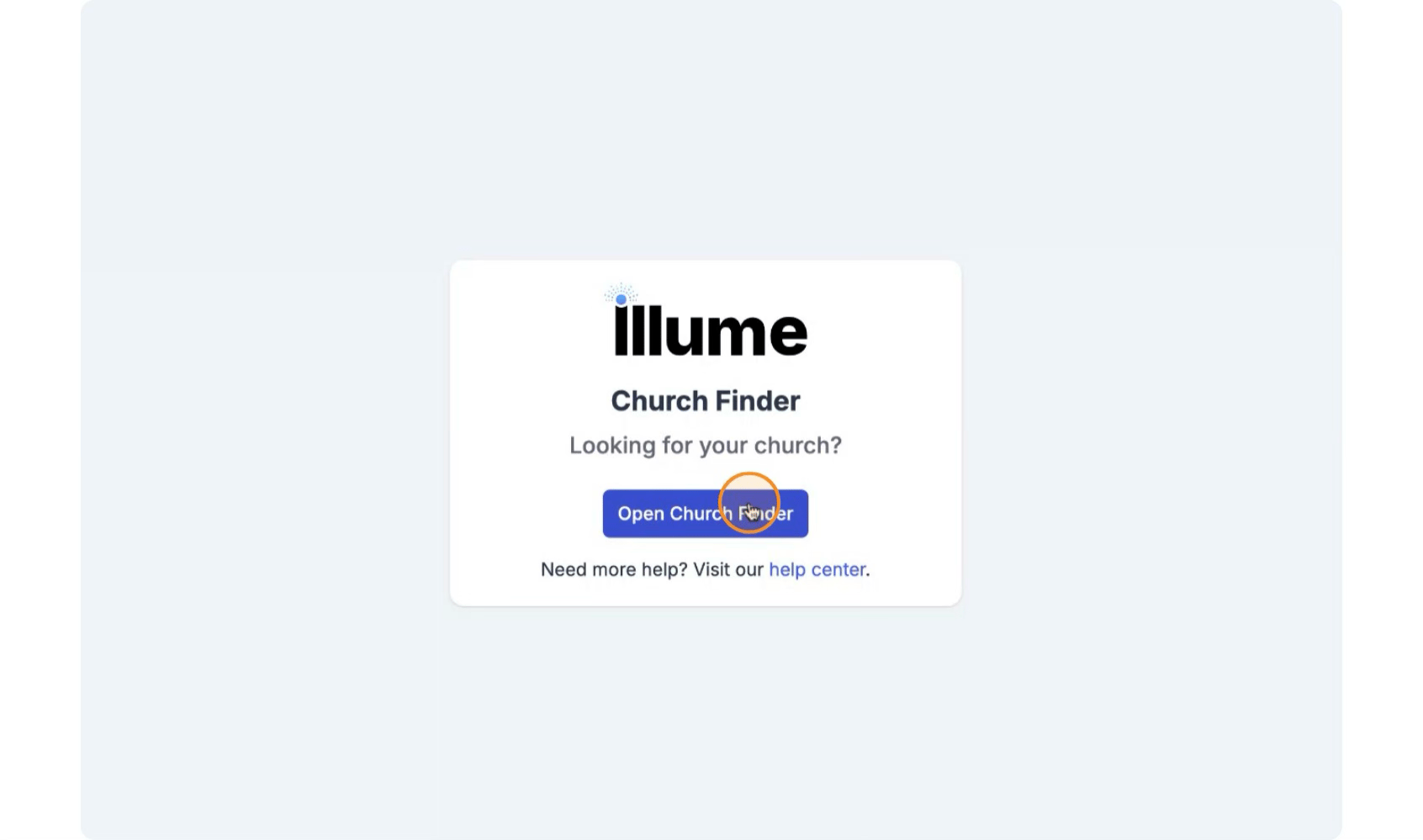
Step 1: Open the illume Church Finder
Click Open Church Finder to begin searching for your church.
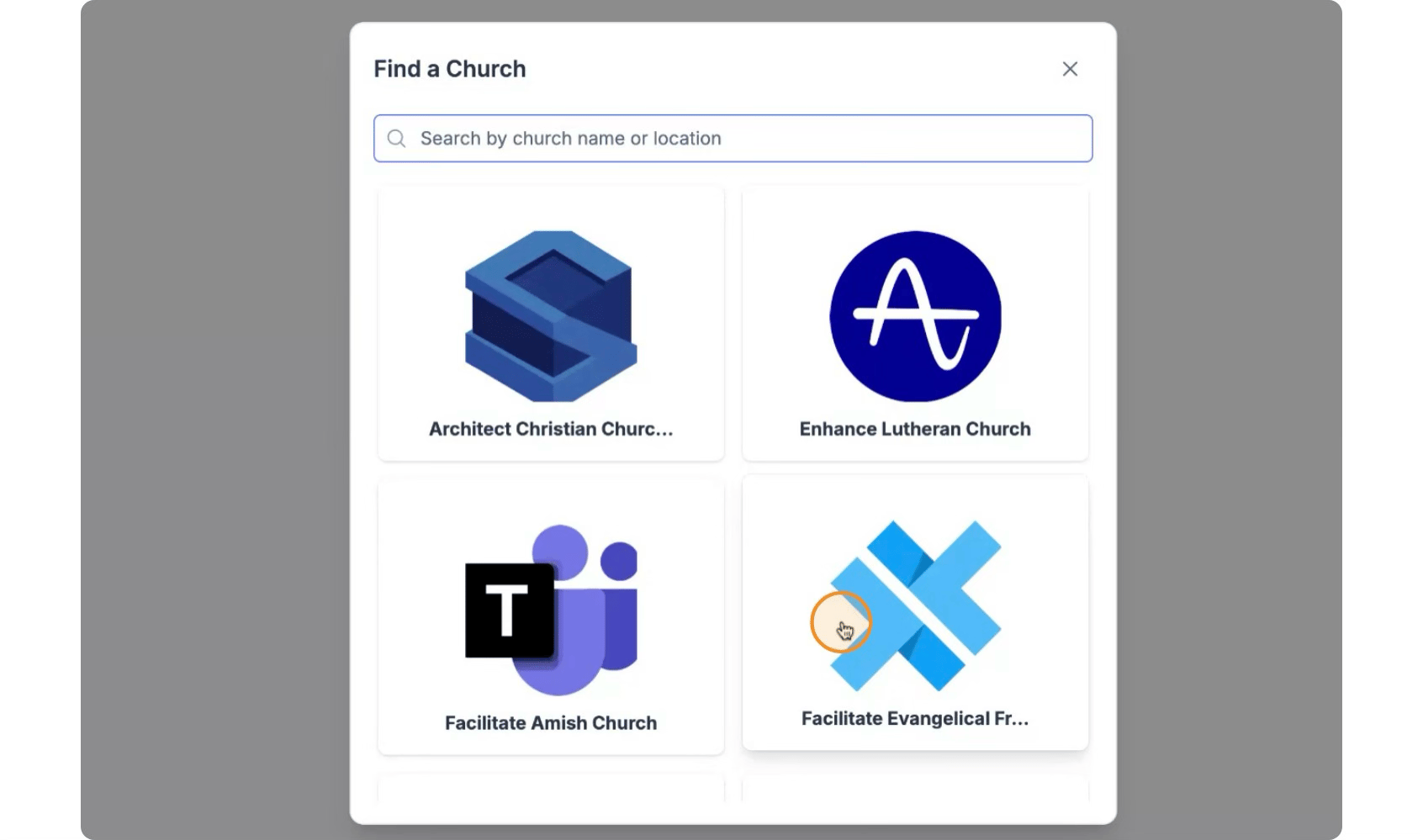
Step 2: Search for and Select Your Church
Use the Church Finder to search for your church by name, location, or by selecting from the list of churches displayed.
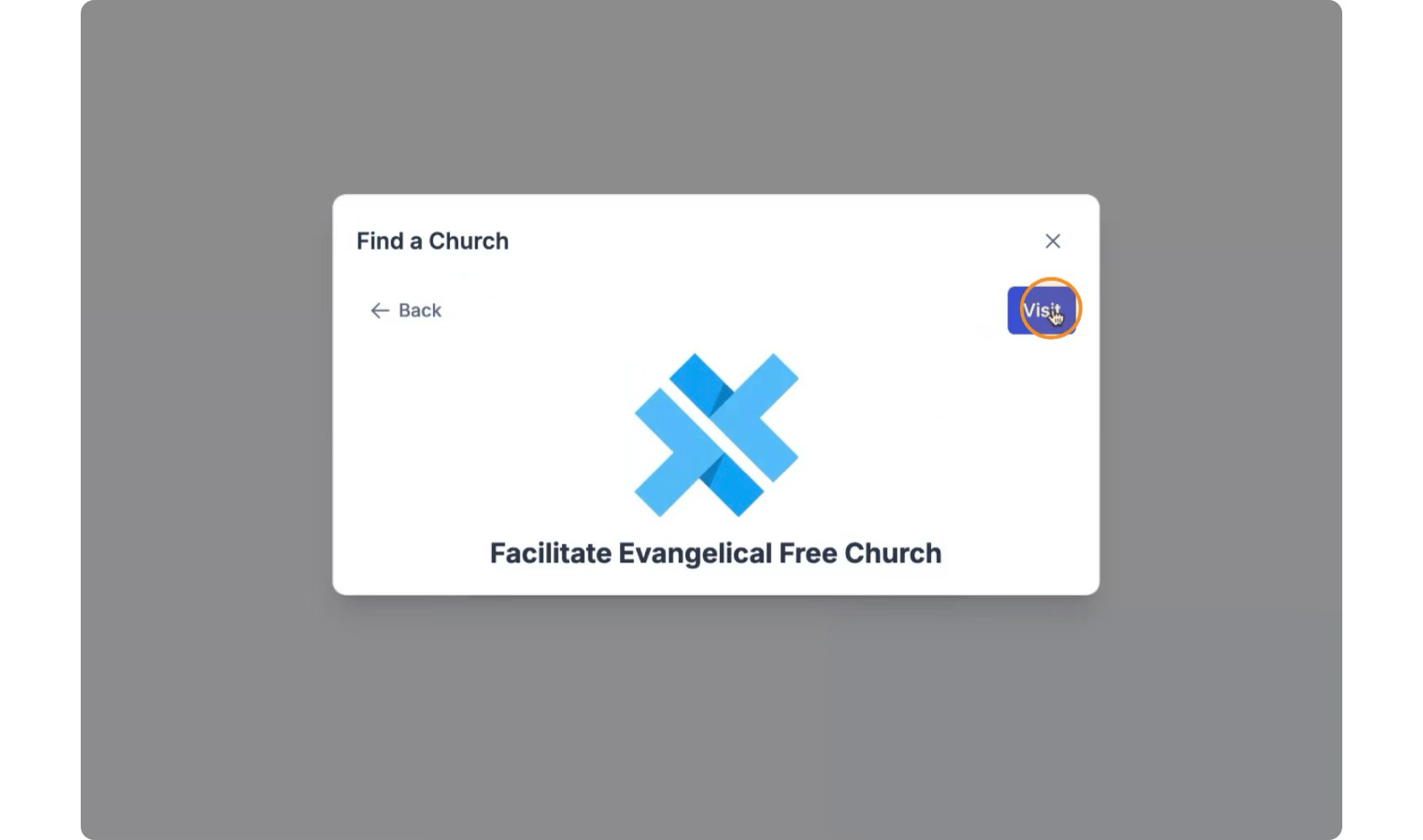
Once you find your church, click Visit to open your church’s hub page.
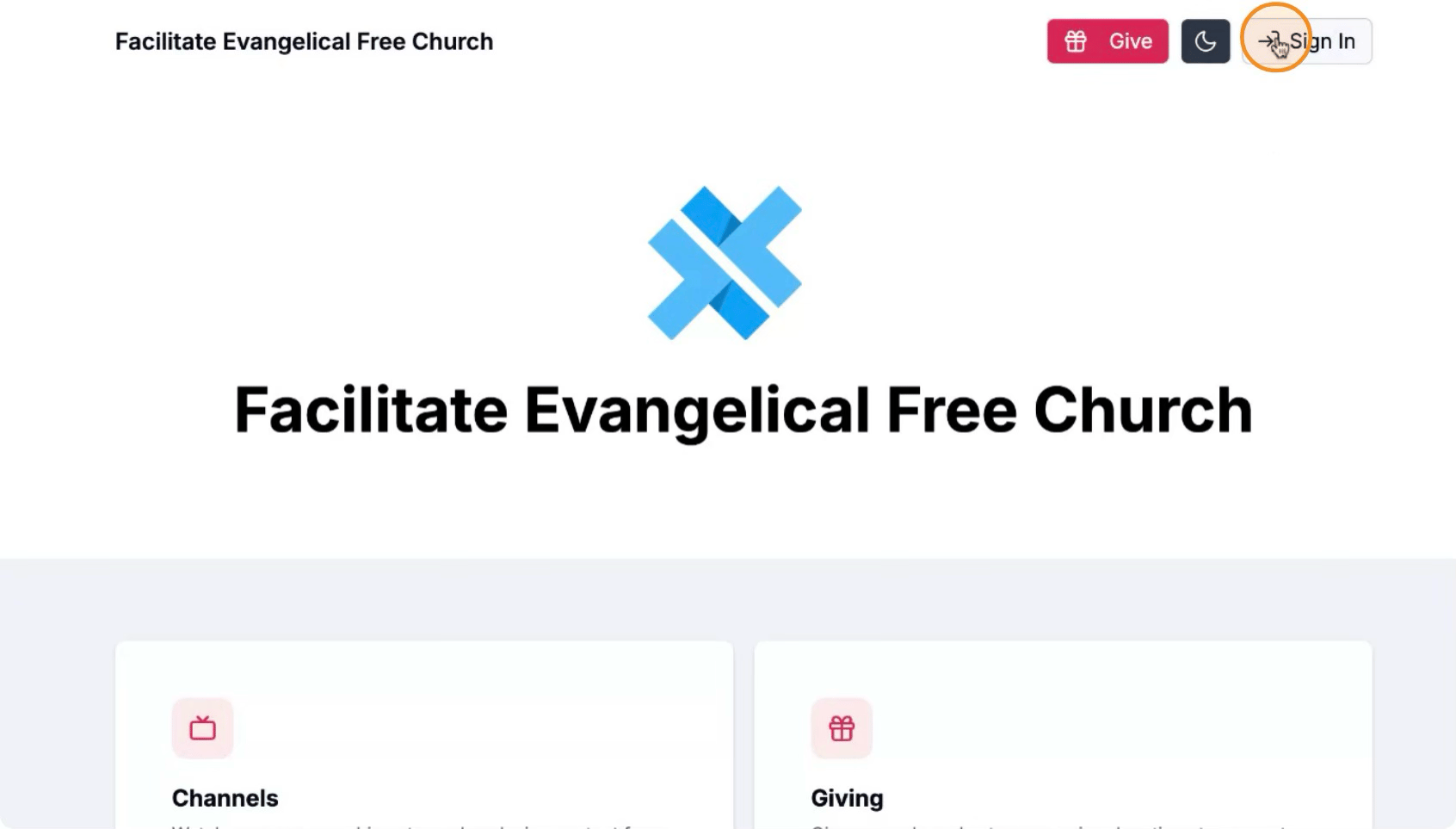
Step 3: Open the Sign-In Screen
On your church’s hub page, click Sign In to begin creating your account.
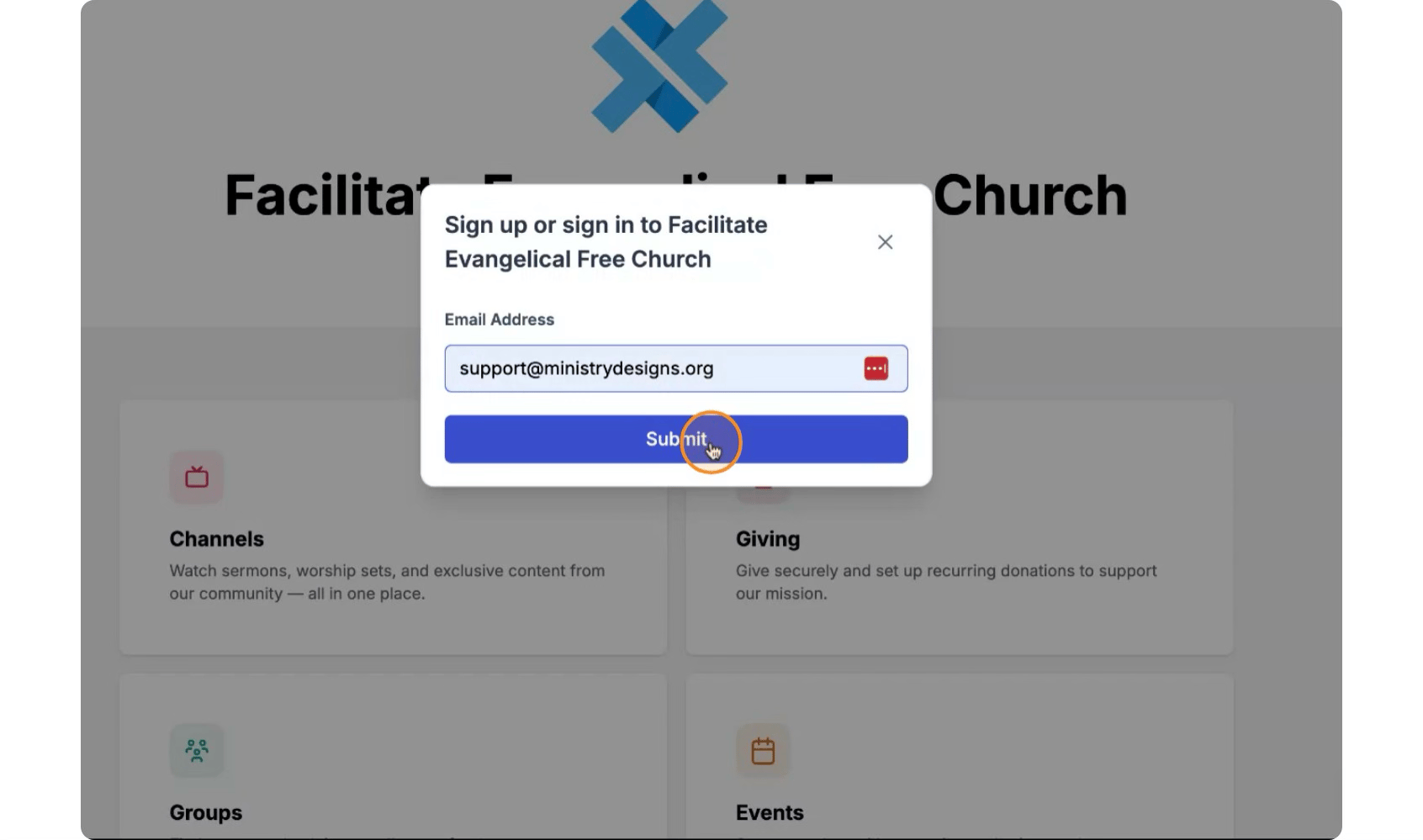
Step 4: Enter Your Email and Personal Details
Enter your email address in the provided field.
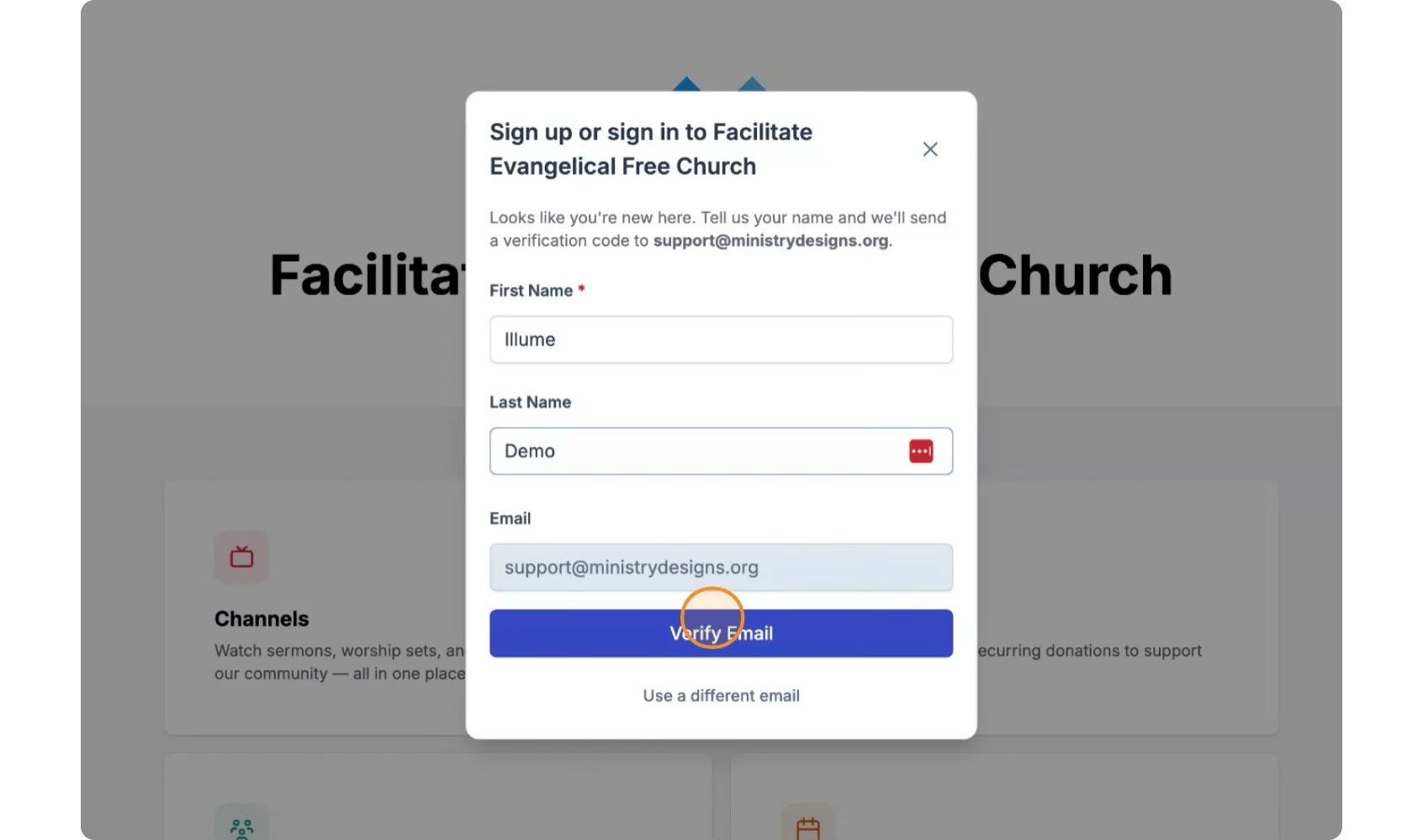
Input your first and last name, then click Verify Email.
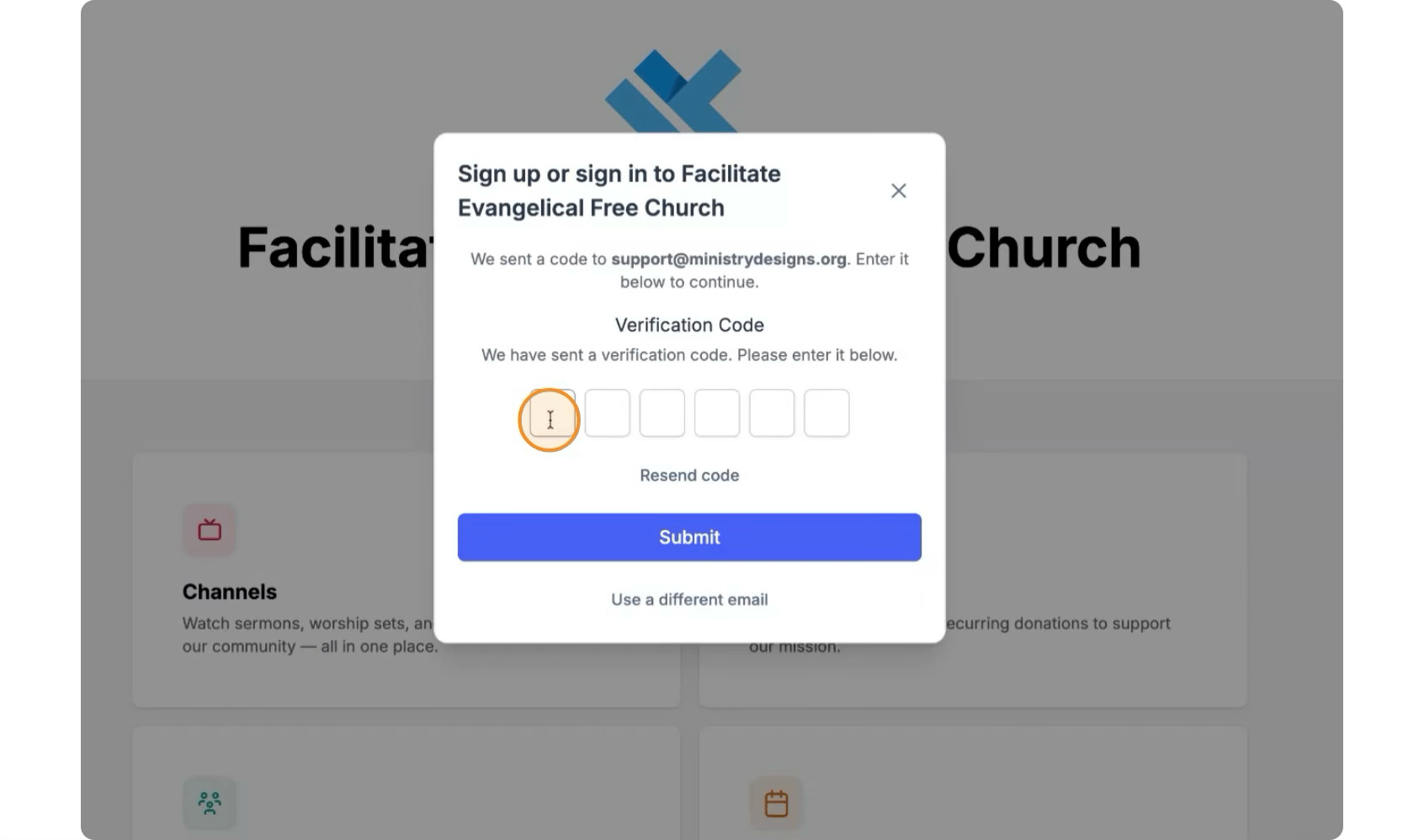
Step 5: Verify Your Email with the One-Time Passcode
Check your email inbox for a one-time passcode. Copy the code from your email, then paste it into the passcode field on the screen. Click Submit to confirm your email.
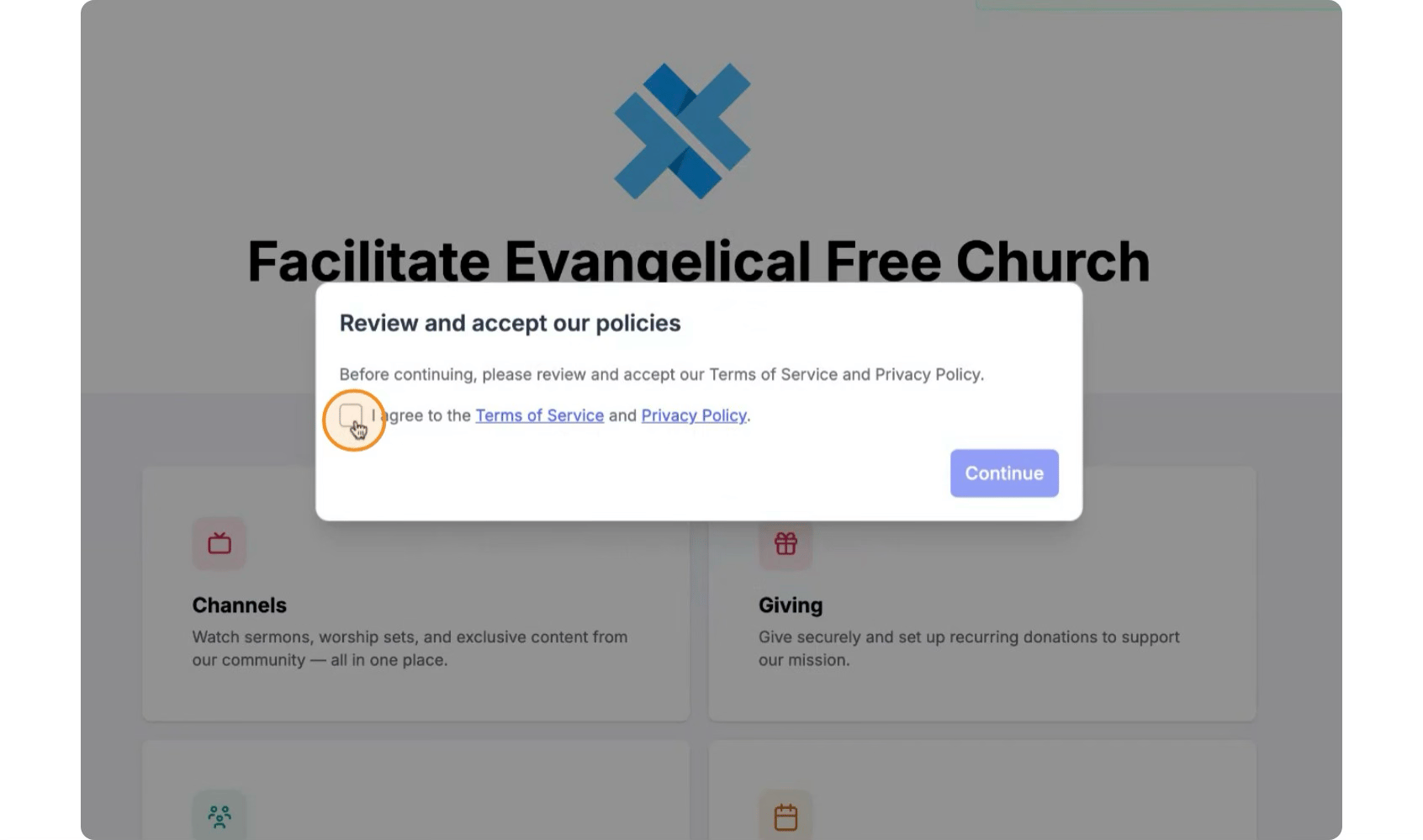
Step 6: Accept Terms and Complete Sign-In
Review and agree to the Terms of Service and Privacy Policy by selecting the appropriate checkbox. Then, click Continue to finish creating your account and sign in to your hub.
You are now signed in to your church’s hub and can begin using all available features.